A stable and secure home office network is essential for efficient remote work. Whether you’re attending virtual meetings, transferring large files, or managing cloud services, your network needs to be optimized for speed, reliability, and security. Below are key technical best practices for setting up a robust home office network.
Your internet connection is the foundation of your home network. Ensure you have sufficient bandwidth to handle multiple devices and demanding tasks such as video conferencing, cloud backups, or streaming high-definition video.
Key considerations:
Router recommendations:
Wi-Fi 6 router: The latest standard offers faster speeds, increased device capacity, and better efficiency than older routers. Dual-band or tri-band routers: These offer multiple frequency bands (2.4 GHz and 5 GHz) to reduce congestion and allow more devices to connect simultaneously.
Quality of Service (QoS): Prioritize bandwidth for essential tasks like video conferencing or VoIP calls.
Router placement can significantly impact your Wi-Fi performance. To maximize coverage and minimize dead spots:
Best practices for placement:
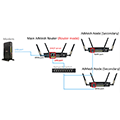
If your home office is far from the router or if you experience weak signals in certain areas, consider installing a mesh Wi-Fi system or range extenders.
Mesh Wi-Fi vs. Extenders:
Mesh Wi-Fi: This system uses multiple nodes to create a single network that blankets your entire home in Wi-Fi coverage. It’s ideal for larger homes or offices with many rooms.
Range Extenders: A cheaper solution, range extenders amplify the existing Wi-Fi signal. However, they may introduce slight delays and bandwidth reduction compared to mesh systems
Whenever possible, use wired Ethernet connections for critical devices like your desktop computer, VoIP phones, or a network-attached storage (NAS) device. Ethernet offers faster, more stable speeds compared to Wi-Fi and is ideal for devices that require consistent performance.
Ensure your router has enough Ethernet ports or use an Ethernet switch to expand the number of wired connections.
Opt for Cat6 cables or higher to support gigabit speeds and future-proof your network.
If other people in your household frequently use the Wi-Fi, set up a guest network to isolate their devices from your work devices. This improves both security and performance by keeping your main network dedicated to work-related activities. How to configure a guest network: - Use your router’s management interface to create a separate SSID (network name) for guests. - Limit the bandwidth available to the guest network to avoid interference with your work activities.
Keeping your home network secure is crucial, especially if you handle sensitive work data. Implement the following security measures to protect your network from intrusions or attacks:
Security best practices: Use WPA3 encryption: If available, enable WPA3 encryption on your Wi-Fi network for the most secure connection. If your router doesn’t support WPA3, use WPA2.
Change default router credentials: Always change the default username and password of your router to something strong and unique.
Update firmware regularly: Keep your router firmware up to date to protect against vulnerabilities.
Disable remote access: Turn off remote management unless absolutely necessary. This reduces the attack surface on your network.
Enable firewall and VPN: Use the router’s built-in firewall for added protection. For remote work, consider using a VPN (Virtual Private Network) to secure your internet traffic, especially when accessing company resources.
If multiple people are using the network simultaneously, bandwidth management can help ensure that critical work activities (like video calls) aren’t disrupted by non-essential traffic. Bandwidth management tools: Quality of Service (QoS): Configure QoS settings in your router to prioritize specific devices or applications, such as Zoom, over less urgent tasks like video streaming. Monitor network traffic: Use your router’s traffic monitoring tools to identify any bandwidth hogs and adjust usage accordingly.
Power outages can happen unexpectedly, and having a backup solution ensures you stay connected. Invest in an uninterruptible power supply (UPS) for your router, modem, and any critical network devices.
Benefits of a UPS:
- Allows continued internet access during brief power outages.
- Provides enough time to safely shut down devices during extended outages.
- Protects network equipment from power surges.
Regular monitoring of your network’s performance helps you quickly identify and resolve issues before they impact your work. Many modern routers come with built-in diagnostic tools.
Monitoring and troubleshooting tips:
- Use network monitoring tools or apps (such as Google Wi-Fi or NetSpot) to check for dead zones, interference, and overall network health.
- Periodically check your internet speed using services like Speedtest to ensure you’re getting the bandwidth you’re paying for.
- Restart your router/modem regularly to clear out temporary issues and refresh the connection.
By following these best practices, you’ll set up a home office network that is fast, secure, and reliable, providing the foundation for a productive remote work environment.
Don’t let poor connectivity slow you down. Contact Phil’s Tech Support today for professional installation of wired and mesh Wi-Fi networks that keep you connected, productive, and stress-free.
Call us for an in home appointment at (401) 525-6702
Visit us at https://philstillman.com
PhilStillman.com provides all types of Technical and IT Support for businesses from Small to Large.